

You can completely customize the layout of meals in your week and have up to 9 meals per day. As an ETM Premium user, you can have different meals and nutrition targets on each day of the week (allowing you to do things like have different nutrition targets on workout and rest days or create more complex leftovers patterns).
On the website:
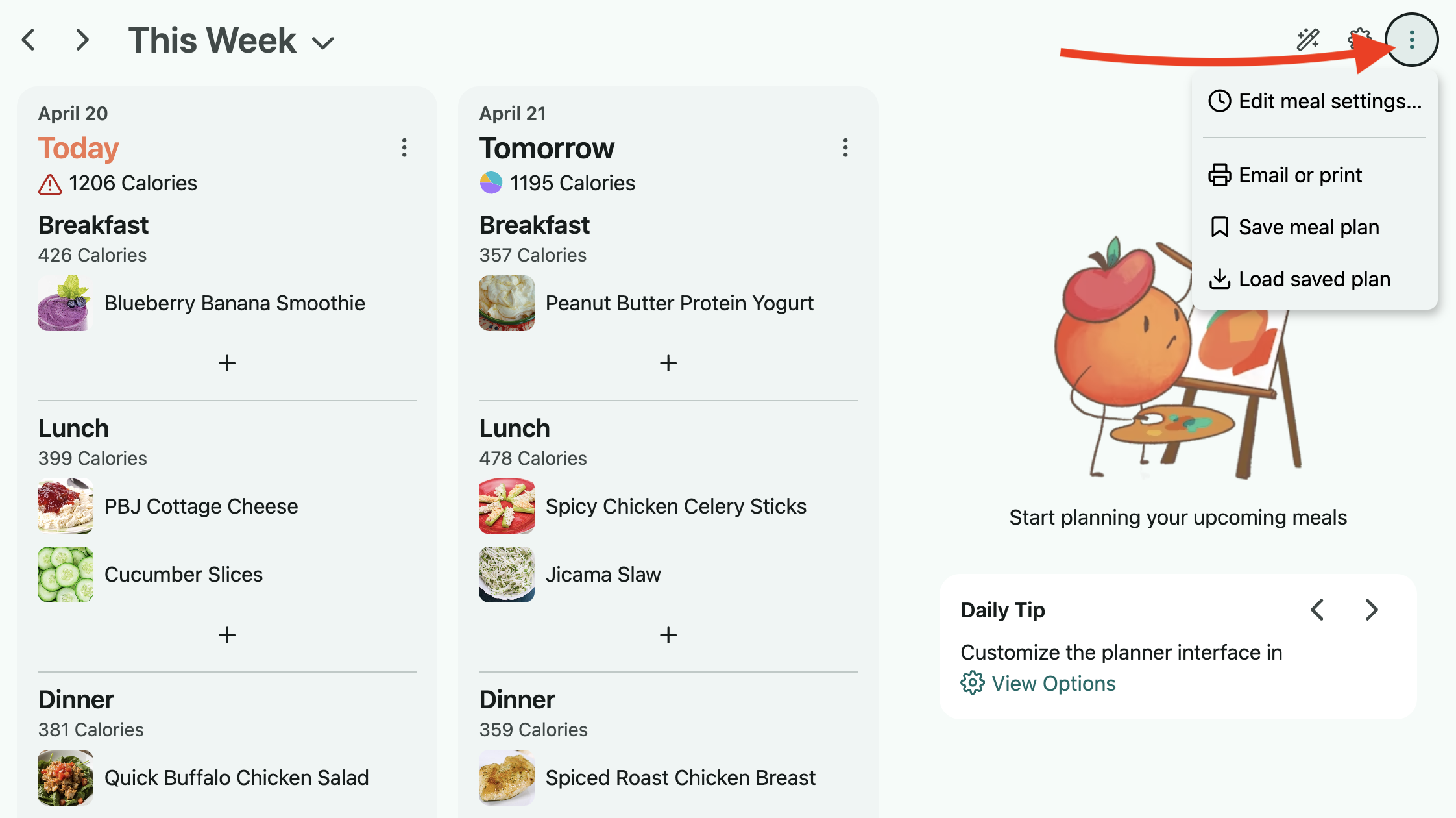
To edit your Meal Layout, click the three-dot menu button near the upper right of the planner page, and select the "Edit Meal Settings" option. You can also access this by expanding the main menu sidebar in the upper left and going to "Meals" under "Plan Settings."
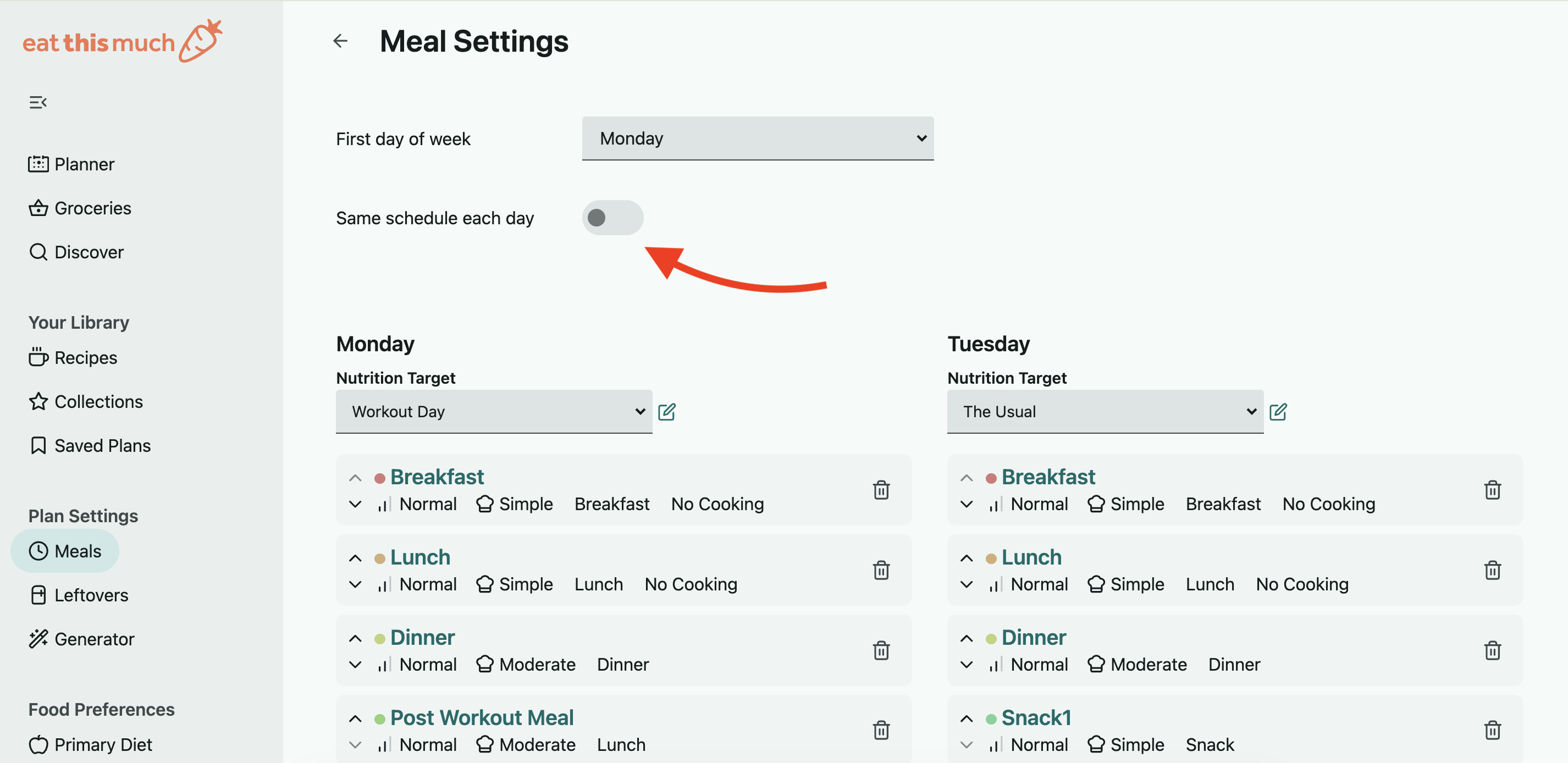
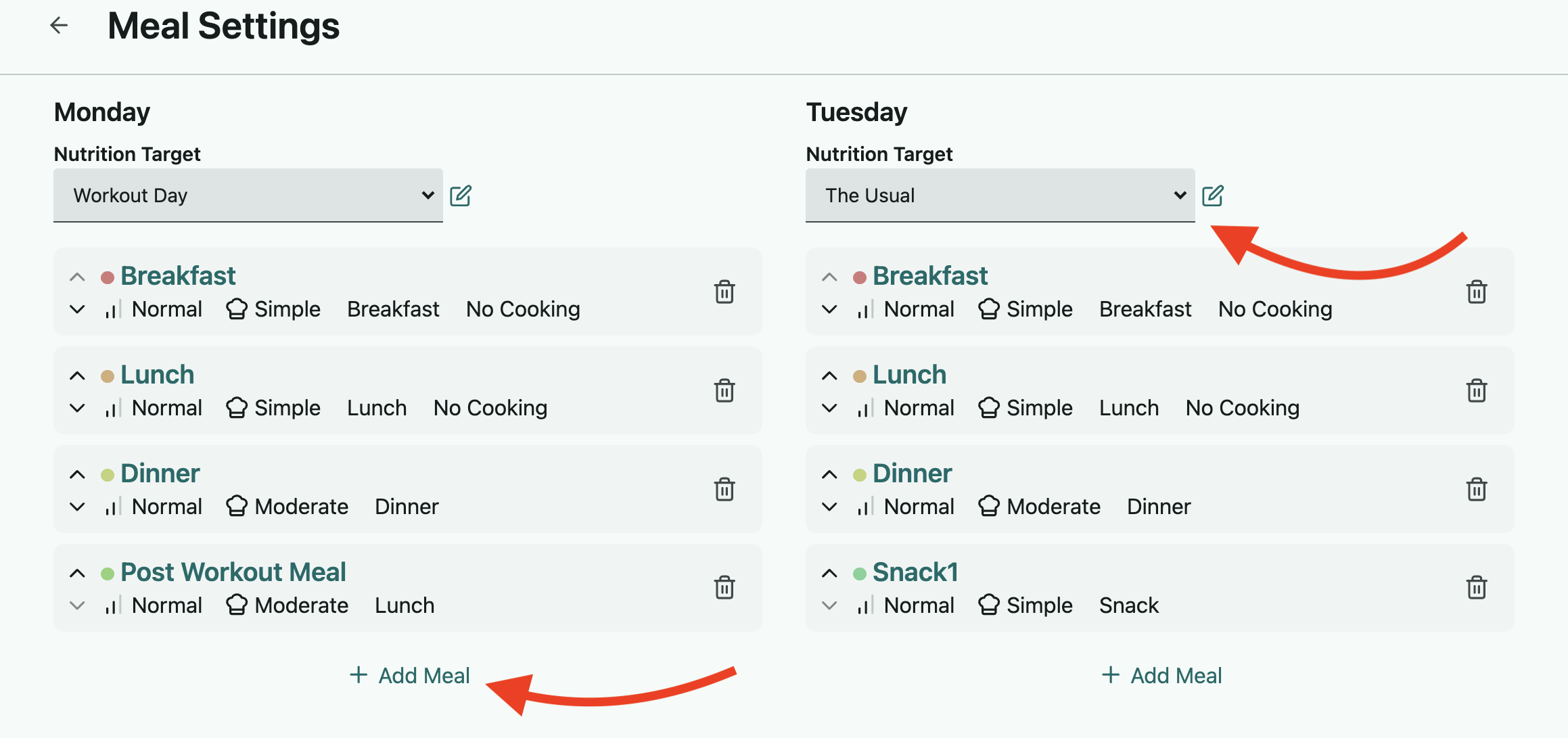
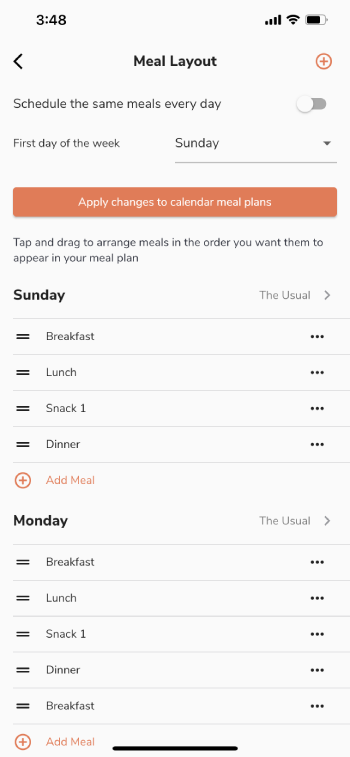
On this page you can leave every day the same, or toggle the option off for "Schedule the same each day" to have a different layout for each day of the week (if you have ETM Premium). you can use the "+ Add Meal" button to add any new meals as needed, and you can customize the order these meals are set up by dragging and dropping the meals in each day to the location you want. You'll see the Nutrition Target listed for each day of the week, which you can select to swap out with any other sets of targets you've created or add a new set of targets:
Once you make the changes you want, regenerating your week will update the meals in your planner to reflect these changes (or once it is auto-generated your following week).
On the app:
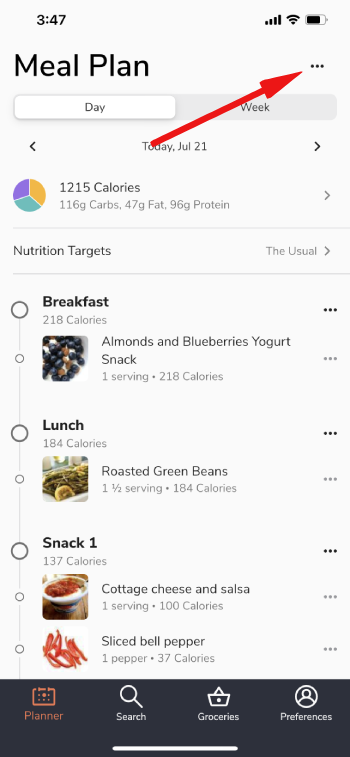
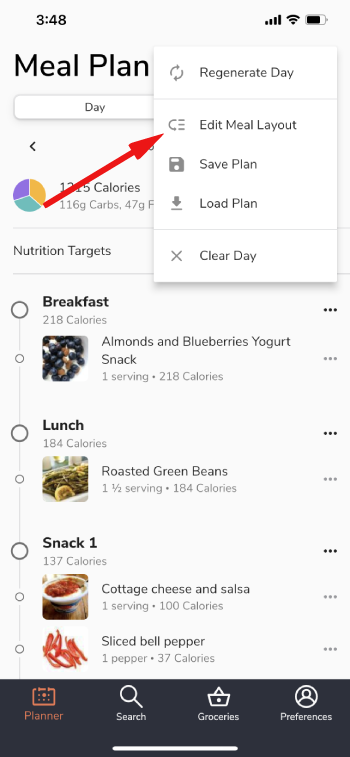
To edit your Meal Layout, click the three-dot menu button near the upper right of the planner page, and select the "Edit Meal Layout" option. You can also access this by going into the preferences menu in the lower right and going to Meal Layout.
Tips:
- When you edit the settings for a meal, this will edit the settings for all occurrences of this meal in your weekly layout. If you want to set up unique settings for particular days of the week, use the "Add Meal" option to create a new meal. For example, you could set up "Weekend Breakfast" as a new meal type and assign this to your layout on Saturday and Sunday. This will allow you to have unique settings for this meal if you may want allow for more prep time and complex breakfast recipes on the weekends.