
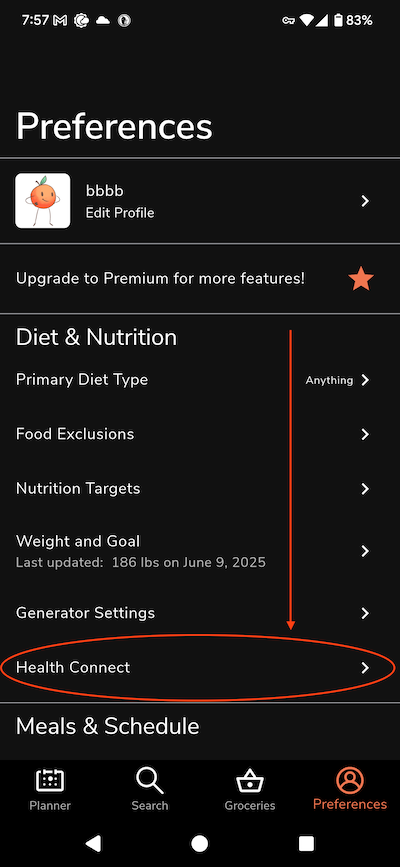
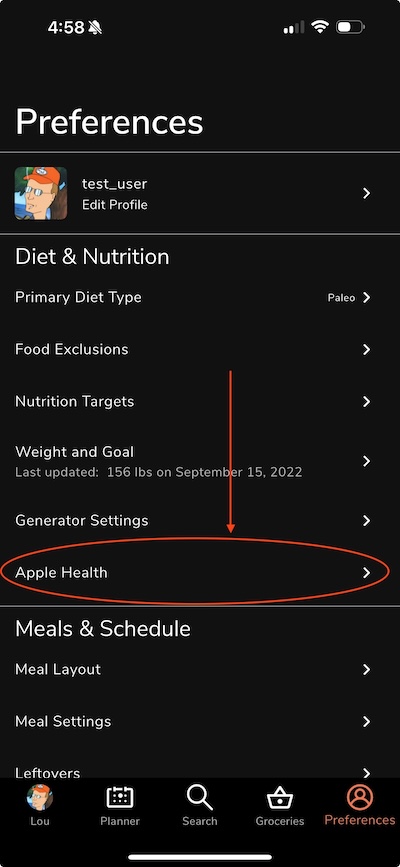
From our mobile app, tap "Preferences" in the bottom right of the screen, then tap either "Apple Health"/"Android Health Connect"/"Google Fit." From this next screen you can toggle these on to sync data.
Android:
iOS:
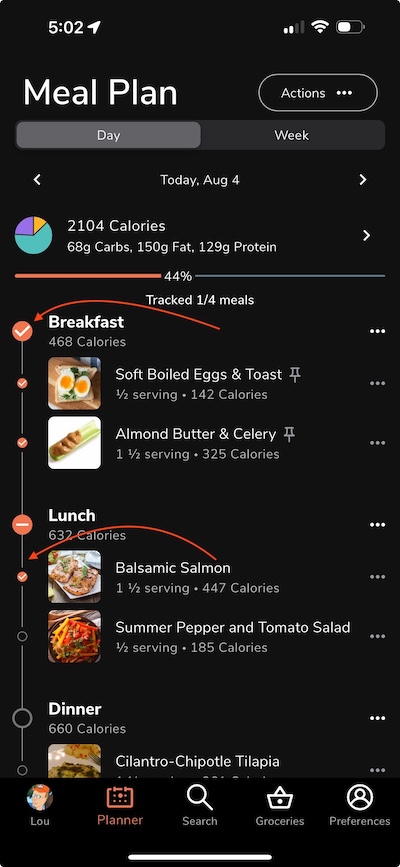
When this is enabled, it will automatically sync whenever you mark a meal as “eaten” by toggling the checkbox next to each meal or food on the planner:
*Note that we only export data to Apple Health and Health Connect — apps like LoseIt should be able to import the data that we export, but apps like MyFitnessPal aren’t able to import it (at time of this writing).